.png)

Provisioned capacity mode on DynamoDB is a cost commitment, not a performance guarantee. You pay for the Read and Write Capacity Units you provision, whether you use them or not, and the moment your traffic exceeds those units, DynamoDB throttles the request immediately. No grace period, no automatic overflow to on-demand, no retry handling at the service level. The retry logic lives in your application SDK, which means every throttled request is a latency spike your users feel directly.
This is why auto scaling configuration is not optional on provisioned tables. A misconfigured target utilization, a GSI without its own scaling policy, or a traffic spike that outpaces the 2-minute alarm window will produce ProvisionedThroughputExceededException errors regardless of how well your application is built.
This post covers exactly how auto scaling works, where it fails, and how to structure your provisioned capacity strategy so throttling and overpay stop happening at the same time.
DynamoDB Auto Scaling is an AWS feature that uses Amazon CloudWatch and AWS Application Auto Scaling to automatically adjust the provisioned Read Capacity Units (RCU) and Write Capacity Units (WCU) of a table or Global Secondary Index (GSI).
Instead of statically provisioning for peak load, auto scaling monitors consumed capacity and adjusts provisioned capacity to track a target utilization percentage.
Three parameters control every auto scaling policy:
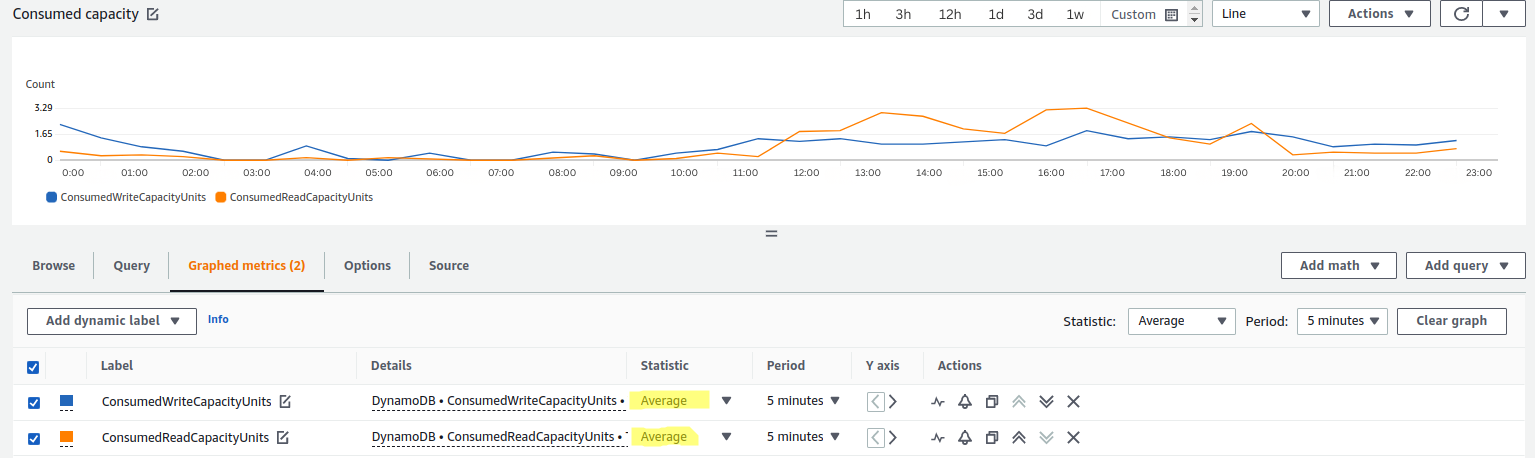
Auto-scaling reduces throttling risk; it doesn't eliminate it. Four specific scenarios cause throttling even when auto scaling is configured.
Auto scaling requires a 2-minute sustained breach before triggering. A traffic spike that saturates capacity in under 2 minutes, a viral event, a batch import, a cron job firing at the same second as user load, will cause throttling before auto scaling has time to respond.
Mitigation options: set a lower target utilization (e.g., 50–60% instead of 70%) to give yourself more headroom, or use Scheduled Scaling to pre-warm capacity before known events (see below).
This is the most common silent failure. Auto scaling policies on a base table do not automatically apply to Global Secondary Indexes. Each GSI requires its own scaling policy. A table with 3 GSIs needs 4 separate scaling policies (1 base table + 3 GSIs), each with independently configured min/max/target values.
Teams frequently notice throttling on reads, reporting dashboards, analytics queries, trace it to CloudWatch, and discover their GSI has been running at a static provisioned capacity since the table was created.
Also read: AWS Reserved Instances: Complete Guide to Pricing, Types & Savings
DynamoDB distributes data across partitions. Auto scaling manages table-level throughput, not partition-level throughput. If your access pattern concentrates writes onto a single partition key (hot key), that partition can be throttled even when overall table utilization is well below your target.
Auto scaling will not fix a hot key problem. Adaptive Capacity (AWS's automatic partition-level balancing) handles some of this, but high-velocity concentrated writes require key design changes.
Setting the target utilization at 90% leaves almost no buffer. The 2-minute alarm delay at 90% utilization means you're already at 95%+ by the time scaling fires. At high write rates, thousands of WCU/second, the gap between trigger and provision covers more requests than your burst capacity can absorb.
Recommended starting target: 70%. At high-volume tables with traffic variance >3x, consider 50–60%.
Choosing between On-Demand and Provisioned with Auto Scaling comes down to one question: do you have enough CloudWatch history to define a reliable min/max range? If yes, provisioned with auto scaling will cost significantly less. If not, on-demand removes the configuration risk until your traffic pattern becomes predictable enough to commit to
Choose On-Demand when: the table is new (traffic baseline unknown), traffic has extreme variance (>10x peak-to-trough), or the table is accessed rarely and inconsistently.
Choose Provisioned + Auto Scaling when: you have at least 2–4 weeks of CloudWatch history showing traffic patterns, sustained daily throughput exceeds roughly 200 WCU or 400 RCU, and you can define a sensible min/max range from that history.
The cost crossover point: On-demand pricing is roughly $1.25 per million write requests and $0.25 per million read requests (us-east-1, verify at aws.amazon.com/dynamodb/pricing, rates change). Provisioned capacity costs $0.00065 per WCU-hour and $0.00013 per RCU-hour. At sustained continuous usage, provisioned costs approximately 80% less than on-demand at equivalent throughput. The break-even for most workloads is at a relatively low consistent throughput; even a table running 10 WCU continuously for a month costs more in on-demand than provisioned.
Prerequisites: IAM permissions for application-autoscaling:*, cloudwatch:*, dynamodb: UpdateTable, dynamodb: DescribeTable. The DynamoDBAutoscaleRole managed policy covers these.
Step 1: Establish a traffic baseline: Before setting min/max/target values, pull 30 days of CloudWatch metrics: ConsumedReadCapacityUnits and ConsumedWriteCapacityUnits at 1-minute resolution. Note the P99 peak, the median sustained rate, and the overnight/weekend floor.
Step 2: Set minimum capacity to your floor: Set minimum capacity at your consistent off-peak baseline, not zero or 1 unless the table truly goes idle. Setting minimum too low forces frequent scale-out events and increases cold-start throttling risk.
Step 3: Set the maximum capacity to your risk tolerance: Maximum capacity directly caps your DynamoDB bill. Set it at 1.5–2x your observed P99 peak, then monitor for alarms hitting the ceiling.
Step 4: Set target utilization at 70%: This is the AWS-recommended default for most workloads. For high-variance tables, use 50–60%.
Step 5: Apply a separate policy to every GSI: For each GSI on the table, repeat the configuration above. Use the same target utilization but review the GSI's own CloudWatch metrics for appropriate min/max values — GSI access patterns often differ significantly from base table patterns.
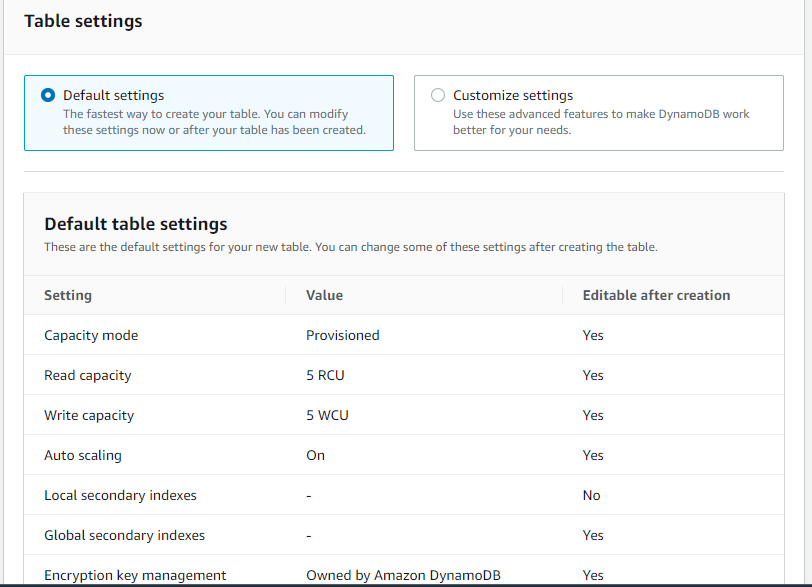
Step 6: Add Scheduled Scaling for known events If you run marketing campaigns, cron-based batch jobs, or weekly reporting processes, use AWS Application Auto Scaling scheduled actions to pre-warm capacity 10–15 minutes before the event. This eliminates the spike-throttle-react cycle entirely.
aws application-autoscaling put-scheduled-action \
  --service-namespace dynamodb \
  --schedule "cron(0 8 * * ? *)" \
  --scheduled-action-name morning-warmup \
  --resource-id "table/YourTableName" \
  --scalable-dimension dynamodb:table:WriteCapacityUnits \
  --scalable-target-action MinCapacity=500,MaxCapacity=2000
Step 7: Verify it worked In CloudWatch, create an alarm on SystemErrors and ThrottledRequests metrics for the table. If throttling drops to zero over the next traffic cycle, the configuration is working.
Also read: On-Demand vs Reserved vs Spot Instances: The Complete AWS Pricing Guide 2026
DynamoDB Reserved Capacity is a commitment mechanism that provides discounted RCU/WCU rates in exchange for a 1-year or 3-year commitment (verify current pricing and terms at aws.amazon.com/dynamodb/pricing — rates change). It applies to the provisioned capacity you're already paying for — it does not change how auto scaling behaves.
How they interact: Auto scaling adjusts how much provisioned capacity exists at any moment. Reserved Capacity discounts the price you pay for that provisioned capacity. They operate on different layers and combine multiplicatively.
The practical result: auto scaling eliminates the need to overprovision for peaks (reducing the provisioned unit count you're paying for), and Reserved Capacity then discounts the remaining baseline provisioned units you reliably consume.
Reserved Capacity works best when applied to the minimum capacity floor — the WCU/RCU that the table never drops below regardless of traffic.
Manual Reserved Capacity purchasing for DynamoDB has the same problem as all AWS commitment purchasing: you need to decide upfront how many units to commit, for how long, and with what payment option, and if your baseline changes, you're stuck. Underutilize the reservation and you're paying for capacity you don't use.
Usage.ai's Flex Reserved Instances for DynamoDB automate this layer. The platform identifies the stable baseline floor from your actual CloudWatch consumption data, purchases the appropriate Reserved Capacity commitment on your behalf, and critically provides cashback protection if that baseline changes and the reservation goes underutilized.
The auto scaling layer and the Reserved Capacity layer operate independently. Usage.ai manages the commitment purchasing; your auto scaling policies continue to function exactly as configured.
Error 1: ProvisionedThroughputExceededException on reads but not writes Most likely cause: a GSI is not covered by a scaling policy. Check the Indexes tab in the DynamoDB console and confirm each GSI has auto scaling enabled.
Error 2: Auto scaling is enabled, but capacity never decreases Scale-in requires 15 consecutive minutes below target utilization. If your traffic floor is above minimum capacity, scale-in will not trigger. This is expected behavior, lower your minimum capacity to allow the scale-in to fire.
Error 3: ValidationException when calling UpdateTable too frequently, DynamoDB limits the frequency of UpdateTable calls. Rapid traffic oscillation can cause auto scaling to queue changes. If this appears in CloudWatch logs, widen the gap between min and max, or lower the target utilization to reduce how frequently thresholds are crossed.
Error 4: Capacity scales up, but throttling continues Usually a hot partition issue. Check CloudWatch's ConsumedWriteCapacityUnits broken down by partition key using DynamoDB Contributor Insights. If a single key consumes >50% of total writes, it's a hot key that auto scaling cannot resolve.

Auto scaling solves one problem: keeping provisioned capacity close to actual demand as traffic changes. It does not solve over-commitment at the baseline, hot partition keys, or the 15-minute lag that leaves you paying for capacity your table no longer needs.
The teams that get DynamoDB costs fully under control treat it as two separate problems. Auto scaling handles the ceiling, the dynamic range between minimum and maximum capacity that fluctuates with traffic. Reserved Capacity handles the floor, the baseline RCU and WCU the table reliably consumes every hour of every day, regardless of traffic patterns. Solving only one of the two leaves money on the table.
The configuration decisions that matter most are the ones most teams skip: setting target utilization at 70% instead of the default, writing independent scaling policies for every GSI, using Scheduled Scaling before known traffic events, and committing reserved capacity only against the consumption floor your CloudWatch history confirms.
Get those four things right, and DynamoDB stops being a surprise line item on your AWS bill.
Tracking baseline consumption manually across every table to identify Reserved Capacity opportunities is the part that does not scale for engineering teams already managing feature work, incidents, and infrastructure growth simultaneously. Most teams either over-commit and waste money on unused reservations, or under-commit and pay full on-demand rates for capacity that runs 24 hours a day.
Usage.ai's Flex Reserved Instances for DynamoDB closes that gap. The platform analyzes your actual CloudWatch consumption data, identifies the stable baseline floor across every table, and purchases the right Reserved Capacity commitment automatically on your behalf. If your baseline shifts and the reservation goes underutilized, Usage.ai's cashback protection covers the difference. No upfront cost, no multi-year lock-in, no manual analysis required.
300+ enterprise customers, including Motive, EVGo, and Secureframe, have used Usage.ai to recover $91M+ in cloud savings across AWS services, including DynamoDB. Setup takes 30 minutes via billing-layer access only, with zero infrastructure changes required.
See exactly how much your DynamoDB baseline is costing you. Book a free 15-minute savings assessment with Usage.ai and get a full breakdown of your Reserved Capacity opportunity across every table.
1. What is the difference between on-demand and provisioned capacity with auto scaling in DynamoDB?
On-demand mode charges per request and requires no capacity planning DynamoDB handles all scaling internally. Provisioned mode with auto scaling charges per provisioned capacity unit per hour and adjusts capacity based on utilization targets you define. On-demand is simpler but costs significantly more at sustained high throughput, up to 6x the price per unit at continuous load (verify at aws.amazon.com/dynamodb/pricing rates change). Provisioned with auto scaling requires configuration but delivers materially lower costs for predictable workloads.
2. What happens when DynamoDB auto scaling reaches maximum capacity?
Once provisioned capacity hits the configured maximum, auto scaling stops scaling. Any traffic that exceeds the maximum provisioned capacity will be throttled as DynamoDB returns ProvisionedThroughputExceededException. The maximum is a hard cap, not a soft limit. To prevent throttling at the ceiling, monitor CloudWatch for ConsumedWriteCapacityUnits approaching the maximum and adjust the maximum upward, or switch the table to on-demand mode for unpredictable traffic events.
3. Does DynamoDB auto scaling apply automatically to Global Secondary Indexes?
No. Auto scaling on the base table does not propagate to GSIs. Each Global Secondary Index requires its own independent auto scaling policy with its own minimum capacity, maximum capacity, and target utilization settings. Failing to configure GSI scaling is the most common cause of read throttling on DynamoDB tables that appear to have auto scaling enabled.
4. How long does DynamoDB auto scaling take to respond to a traffic spike?
Scale-out typically completes in 1–3 minutes from the point the alarm triggers. The alarm itself requires 2 consecutive minutes of sustained utilization above the target threshold before firing. Total end-to-end latency from spike onset to new capacity available is roughly 3–5 minutes. For traffic spikes that saturate capacity in under 2 minutes, throttling will occur before auto scaling reacts. Use lower target utilization (50–60%) or Scheduled Scaling to pre-warm capacity for known events.
5. What is DynamoDB Reserved Capacity and how does it interact with auto scaling?
DynamoDB Reserved Capacity is a discount mechanism for provisioned throughput. You commit to 1 or 3 years of RCU/WCU in exchange for reduced hourly rates. It applies to whatever provisioned capacity exists at any moment, so it stacks directly with auto scaling. Auto scaling reduces unnecessary over-provisioning (fewer units to pay for); Reserved Capacity discounts the units that remain. The optimal strategy is to reserve the consistent baseline floor and let auto scaling handle traffic variance above that floor.
6. Should I set DynamoDB auto scaling target utilization at 70% or higher?
70% is the AWS-recommended default and a reasonable starting point for most workloads. At 70% target, the remaining 30% headroom absorbs traffic growth during the 2–3 minutes it takes for auto scaling to respond. For high-variance workloads, tables where traffic can spike 3–5x within seconds, 50–60% target utilization provides more buffer at the cost of slightly higher average provisioned capacity. Never set the target above 85% unless the workload is extremely gradual and predictable; at 90%+, you have almost no buffer for the scaling reaction time.
7. Can DynamoDB auto scaling prevent all throttling?
No. Auto scaling reduces throttling from sustained demand growth but cannot prevent throttling caused by sub-2-minute traffic spikes, hot partition keys, or workloads that exceed the configured maximum capacity. For zero-throttle requirements, use on-demand mode, implement client-side exponential backoff with jitter, distribute writes across partition keys to avoid hot partitions, and use DynamoDB DAX for read-heavy workloads where caching can absorb request volume before it reaches the table.
Share this post


.svg)

.svg)
